
Why connect your ebook library to an AI agent
Connect Claude, Codex, or another AI client to your Papyrium library over MCP to tidy up metadata, pick what to read next, and get back to your own notes.
Ask an AI what to read about ancient Rome, and it will likely suggest a few good books. Some of them may already be in your library. You started one and set it aside; in another, you left dozens of notes.
The AI doesn’t know any of that. Give it access to your library, though, and the conversation changes. You can ask it to pick your next book from the ones you already have, put together a reading plan, or help you make sense of your own notes.
Papyrium lets you do this through MCP (Model Context Protocol), a way to connect your library to an AI client such as Claude Desktop, Claude Code, or Codex. The client gets access to your catalog, book details, reading progress, and notes.
You can start with something many people have been putting off for years.
Tidy up your library
Over a few years, an ebook library gets messy. Some books have no author, others show the name of the downloaded file instead of a proper title. Some categories were filled in automatically and look odd, and the tags you once started adding fell out of use long ago.
Fixing all that by hand takes a long time, especially with hundreds or thousands of books. Instead, you can ask the agent:
Find books with no author or category. Try to fill in the gaps and sort the books into my existing categories. Show me what you plan to change first.
The agent goes through the catalog and proposes changes. You review them, adjust what you need to, and only then let it apply them.
In the same way, you can make author names consistent, add tags, or find duplicates. And if your books are spread across several connected folders, the agent can help move them where they belong.
Of course, the agent can make mistakes: mix up editions, get an author wrong, or pick the wrong category. That’s why Papyrium keeps a log of what it does. You can see exactly what changed and undo most metadata changes, though not file operations like moving books.
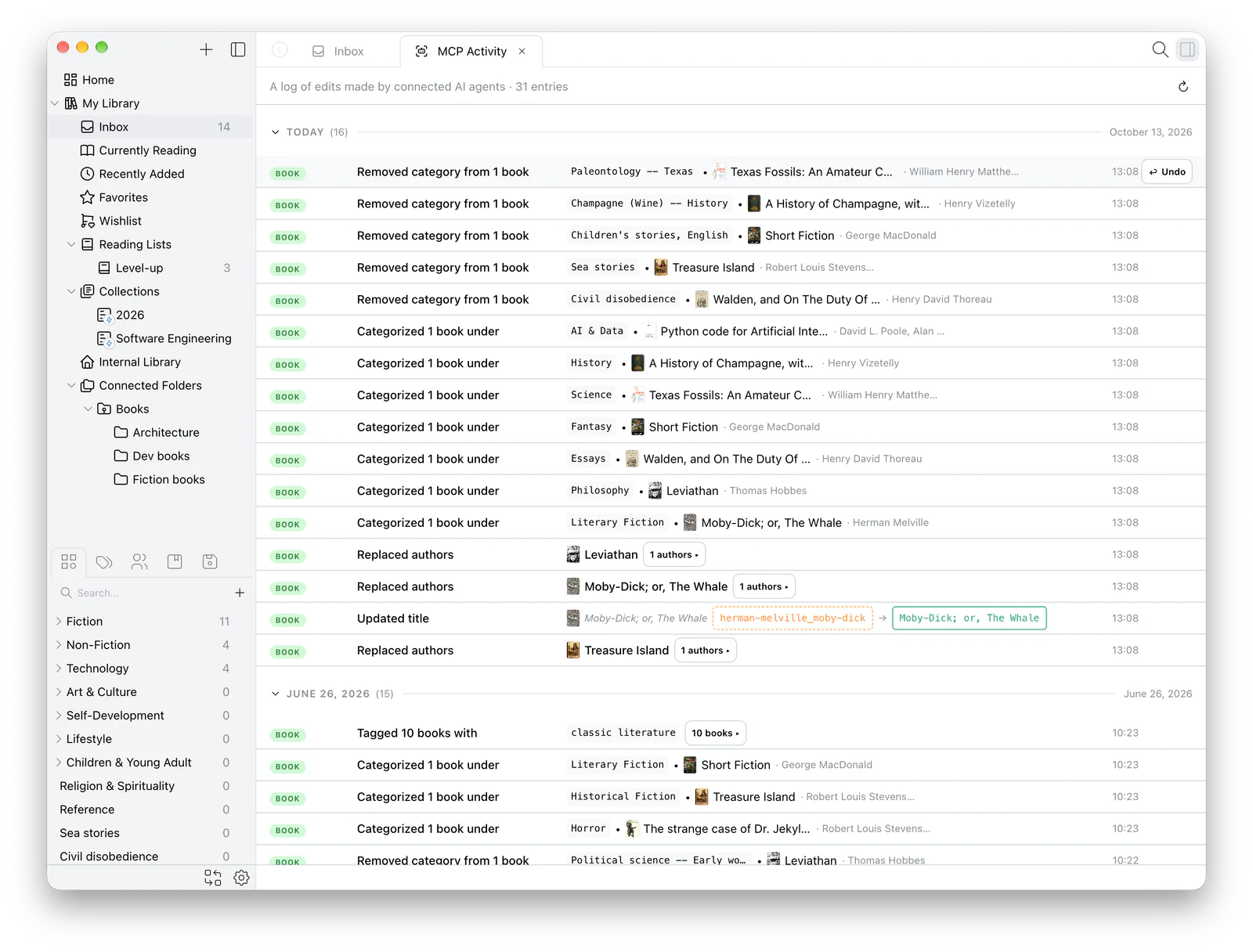
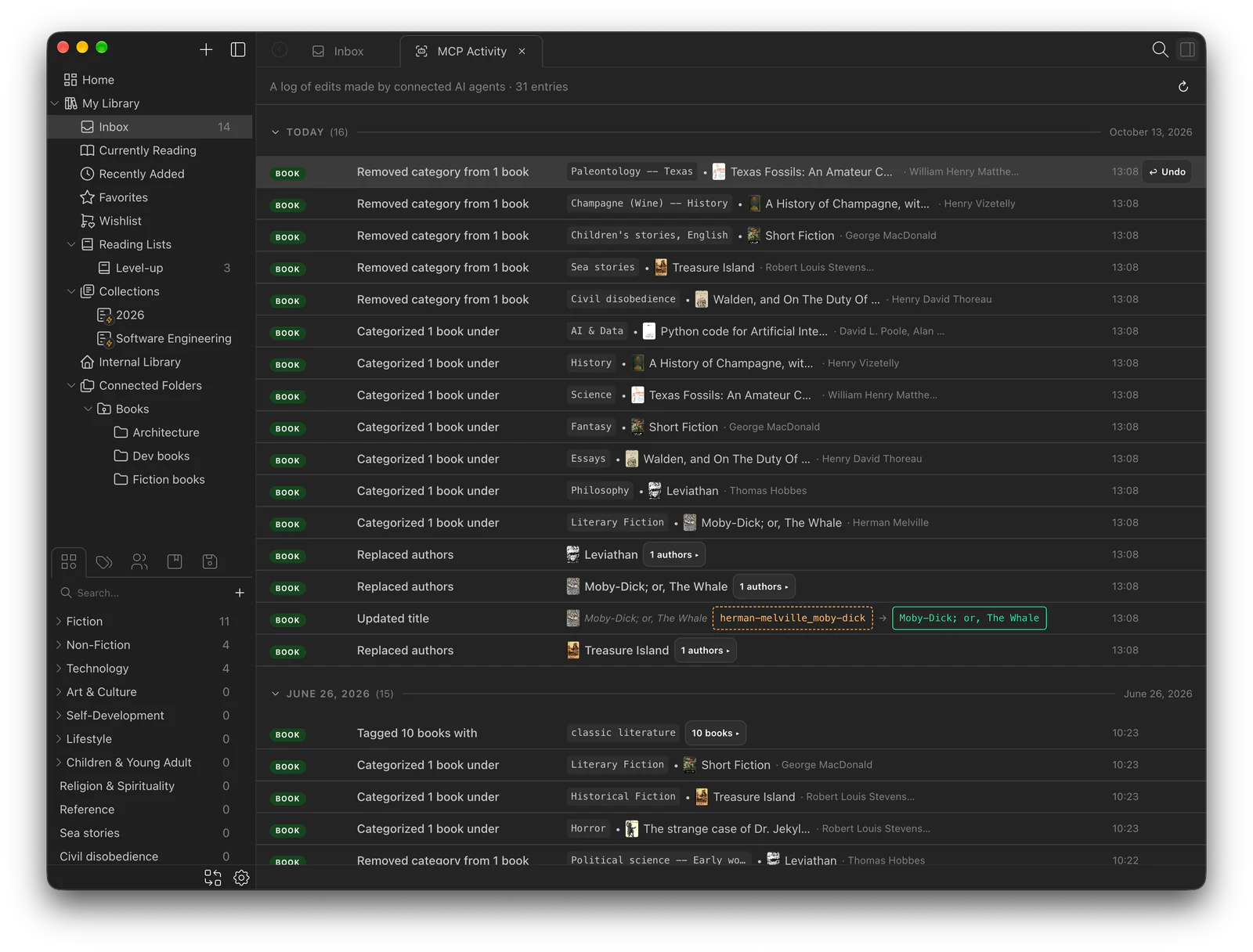
Then new books arrive, and the mess slowly builds up again. In Papyrium, you can set up an Inbox for them or just use a folder you already have, like Downloads. Once a few new books pile up, ask the agent to check their metadata, assign categories, look for duplicates, and, if needed, move the files into the right folders. The big cleanup turns into a small task you come back to now and then.
Find what to read next
Picture a few hundred books: some you’ve read, some you’ve started, and some you’ve forgotten you even own. You can ask the agent:
What should I read next? Look at what I’ve been reading lately and suggest something similar from my library.
The agent looks at what you’ve been reading lately and what else is on your shelves. It might even suggest going back to a book you put down months ago.
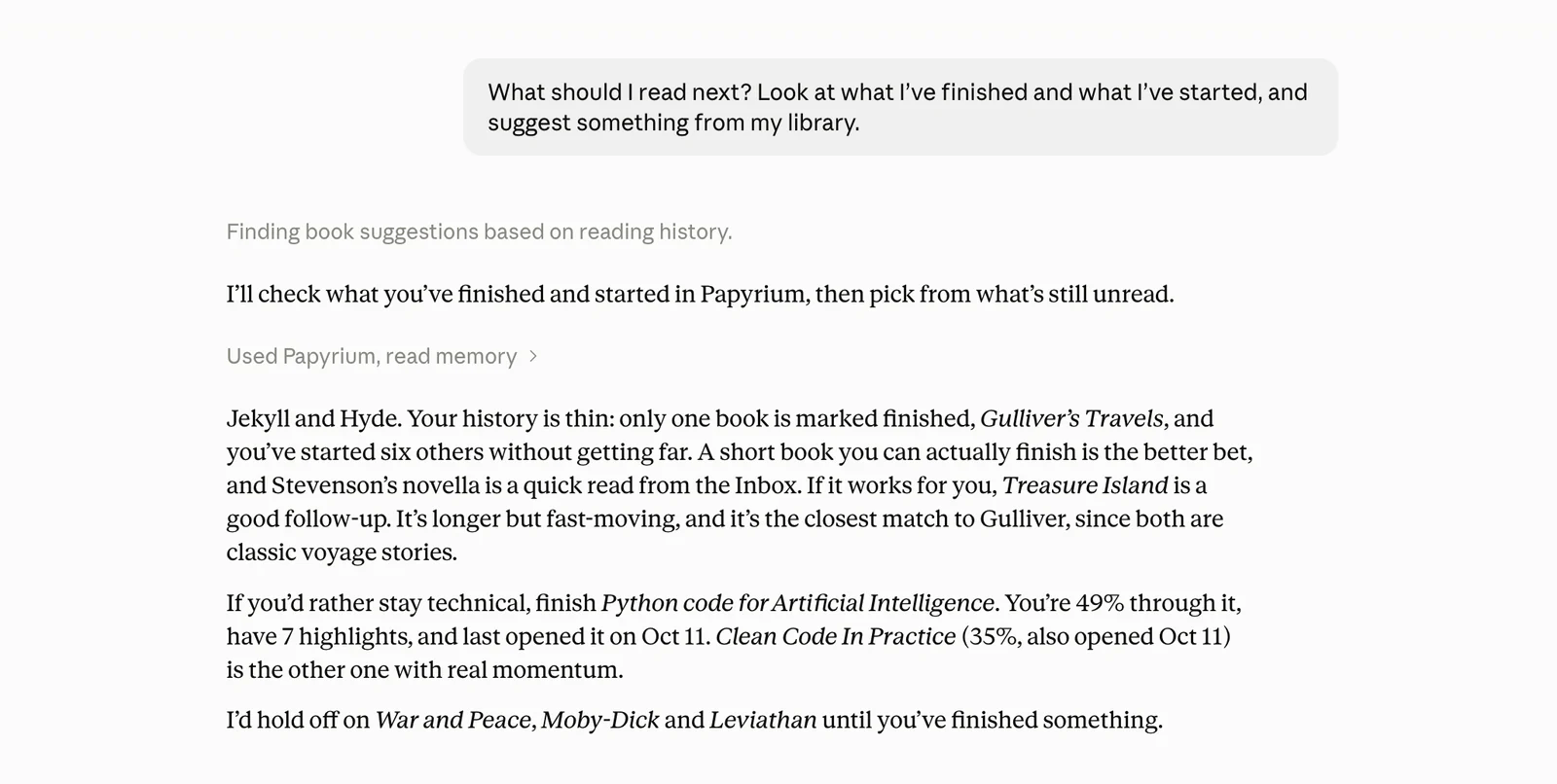
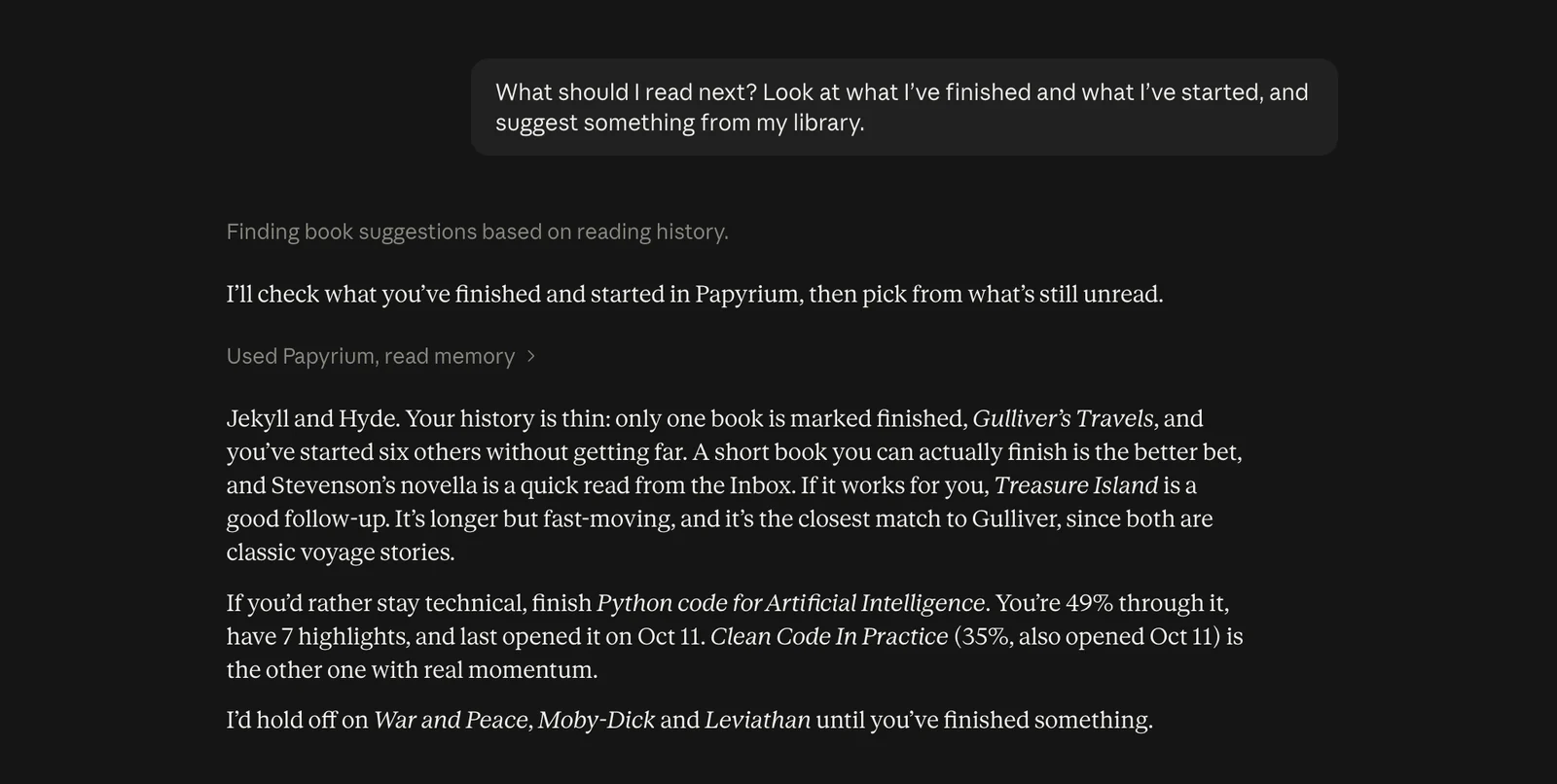
That doesn’t mean it has read your whole library: its suggestions are based on what’s known about the books and on what the AI model itself knows. Even so, that context helps, especially if you’ve been collecting books for years and no longer remember everything you once meant to read.
Prepare for an exam or learn something new
Sometimes, though, you’re reading with a goal in mind. Say you have a statistics exam in a month. Your library already has a textbook, a reference book, a few PDFs with lecture notes, and a couple of books you downloaded for later. But it’s not clear where to start or how much you’ll get through. You can ask:
I have a statistics exam in four weeks. Look at what books on the subject I have in my library and suggest a study plan. I have about an hour a day.
The agent picks out relevant books, suggests where to start, and puts together a four-week study plan. You can adjust it as you go. You can also gather these books into a reading list in Papyrium, so you don’t have to hunt for them across the catalog each time.
And you don’t need an exam for this. You can approach any subject you’ve been meaning to learn the same way, like photography or getting back to a foreign language. Instead of searching the web for new material right away, start with what you already have.
Get back to your own notes
While reading, we highlight passages, add comments, and leave bookmarks. But a few months later, it’s hard to remember which book a particular idea came from.
If you read in Papyrium and keep your highlights and notes there, the agent can search them across many books at once. For example:
Find my notes on how habits form.
Suppose those notes are scattered across several books on habits and motivation. In each one you highlighted passages, agreeing with the author in some places and arguing in the margins in others. Now you can ask the agent to gather them into a single summary, show where the authors agree and where they differ, and note where each idea came from. Your AI client writes the document. Papyrium hands it your highlights and comments, along with the book and chapter for each.
You no longer have to remember which idea was in which book, or open them all again to find it. What you once found important is easy to get back to.
What the agent sees and what leaves your Mac
Papyrium’s MCP server runs locally on your Mac and is off by default. You decide when to turn it on and what the connected client may do. You can give it read-only access to your catalog. Editing metadata needs a separate permission, and so does moving or deleting files.
Over MCP, Papyrium shares information about your books, including metadata, notes, and file paths, but not the text of the books. Still, a local connection doesn’t necessarily mean the AI runs locally. Depending on the client and the model you use, the data it receives may be sent to an outside AI provider. And clients with their own access to your file system can read files directly. So it’s worth checking the client’s own settings and permissions.
Try it on your own library
If you already use Claude Desktop, Claude Code, Codex, or another MCP client, you can connect Papyrium by following the setup guide. To begin, turn on the server with read-only access and ask the question this article started with. Only this time, the agent has something to go on:
What do I have on the history of ancient Rome? And which of those haven’t I read yet?