
Keep your ebooks in the folders you already use
Bring PDF, EPUB, and FB2 books from different folders, drives, and a NAS into one library on your Mac — without moving the files.
If you’ve been collecting ebooks for a while, they probably live in more than one place. Technical PDFs in Documents, recent EPUBs in Downloads, older books on an external drive or a NAS.
Nothing wrong with that: you know where things are, and each folder has its own logic. The trouble is that once there are a lot of books, folders can’t answer simple questions: where’s that book, what have I already read, where did I write that note?
Library managers can help, but some require you to import your books into their own storage first. For a collection you’ve spent years arranging your way, that’s extra work.
One library, many folders
Papyrium is a Mac app that brings PDF, EPUB, and FB2 books from different folders into one catalog without moving them.
You point it at the folders where your books already are: in Documents, on an external drive, on a NAS, inside another app. Papyrium finds the books and adds them to your library. The files stay where they are, with their original names and folder structure. They still open from Finder and other apps. You can also connect the folder where Calibre keeps your books. They show up in the catalog, though tags and ratings from Calibre’s database don’t carry over yet.
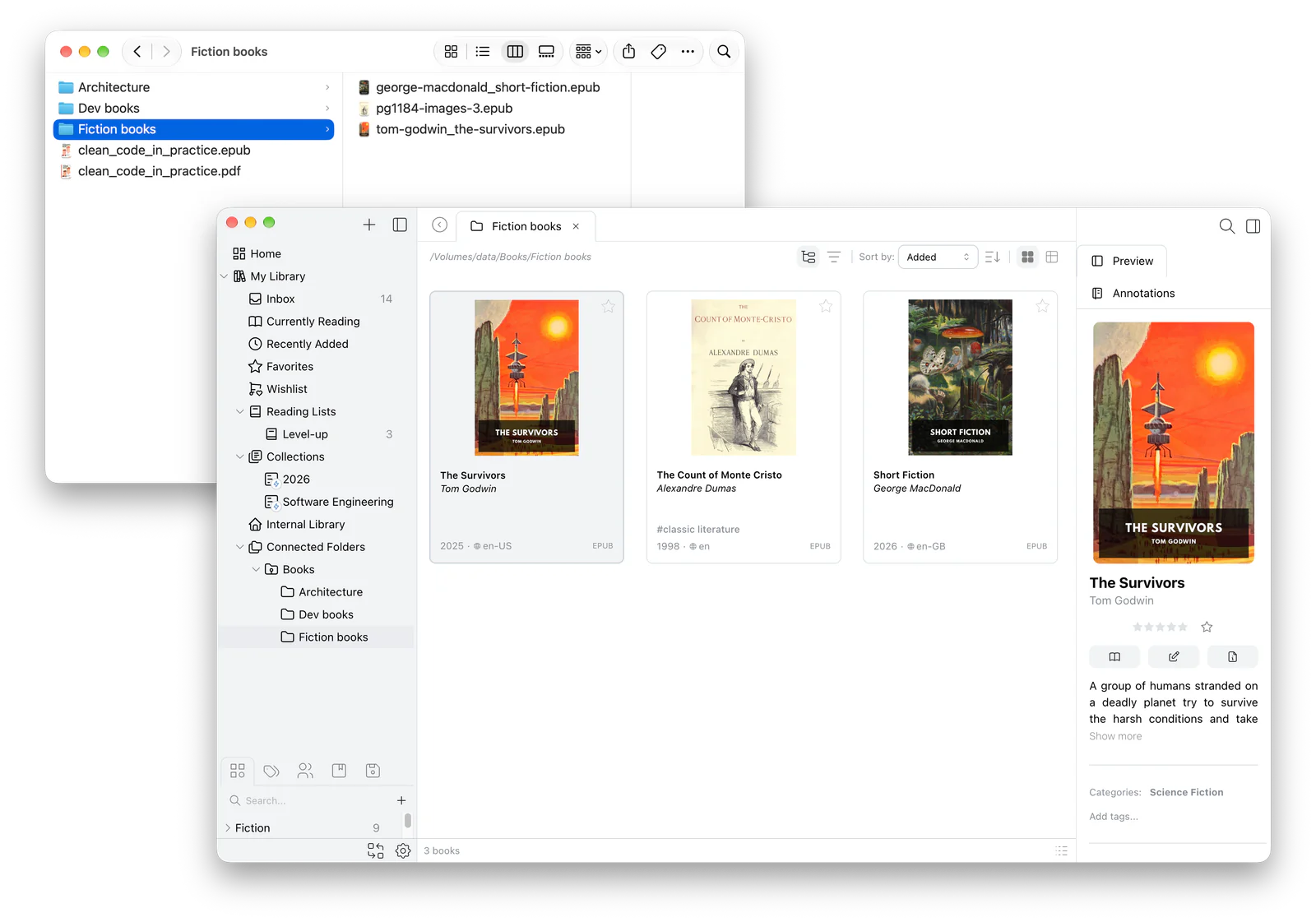
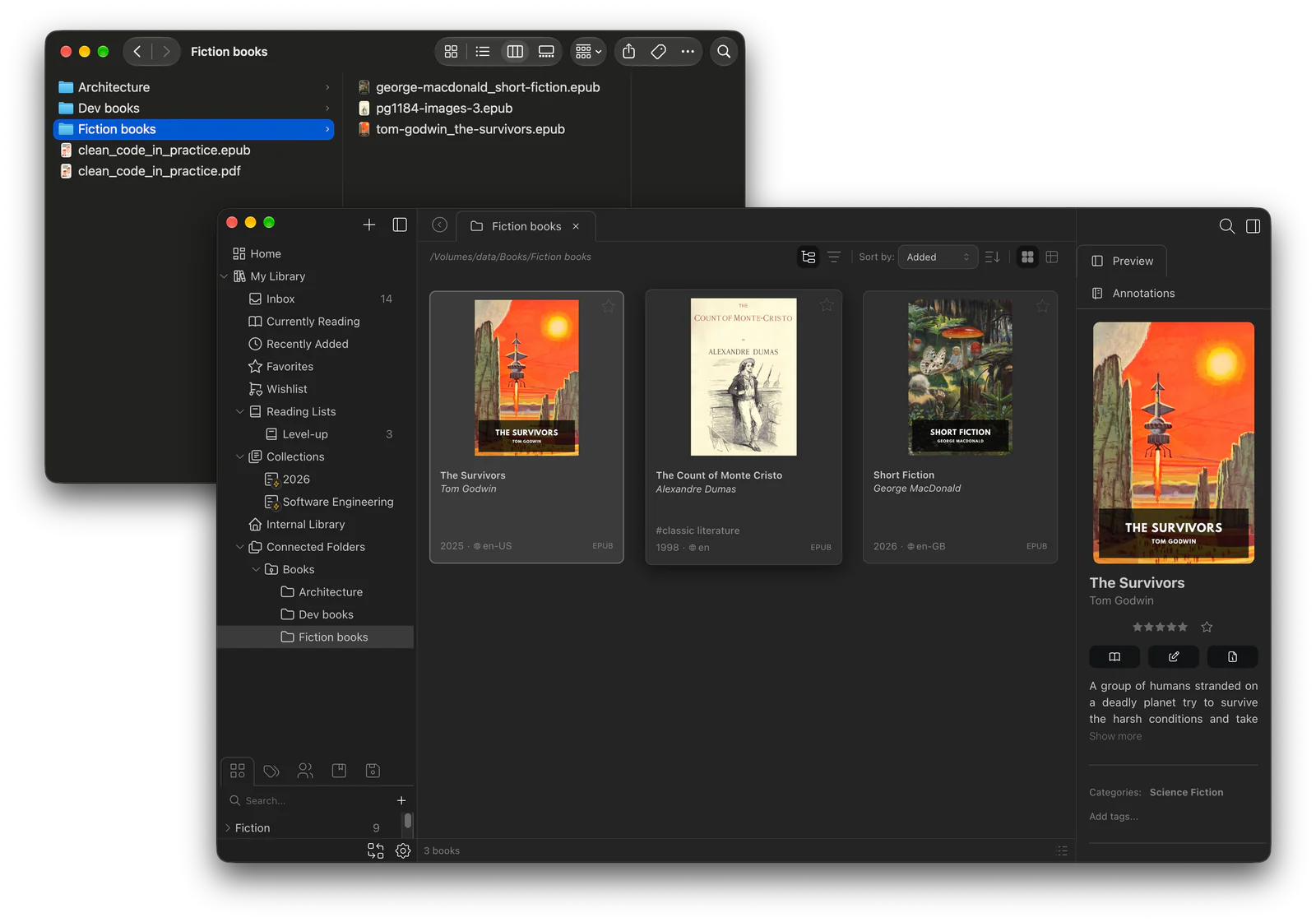
This gives you two ways to organize your books, and you see both in one app. Your folders on disk stay the way you like them. In the catalog, you can group books differently: a manual from the NAS and a book from Documents can sit in the same collection, even though nothing links them on disk.
Instead of remembering which drive a book is on, you search the catalog — across all your folders at once. You can also see what you’ve already read, and a book’s notes are right there in the library.
Prefer a classic library?
You don’t have to leave books in their original folders. Import them into Papyrium’s library folder instead, and choose whether to copy or move the files.
You can do both: the old archive stays on the NAS, and new books go into the library folder.
When a drive is disconnected
Part of a collection might live on an external drive you plug in once a week, or on a home NAS you can’t reach while traveling.
When a drive is disconnected, its books don’t disappear from the catalog: titles, covers, and your notes are still there. Papyrium just marks the ones you can’t open right now.
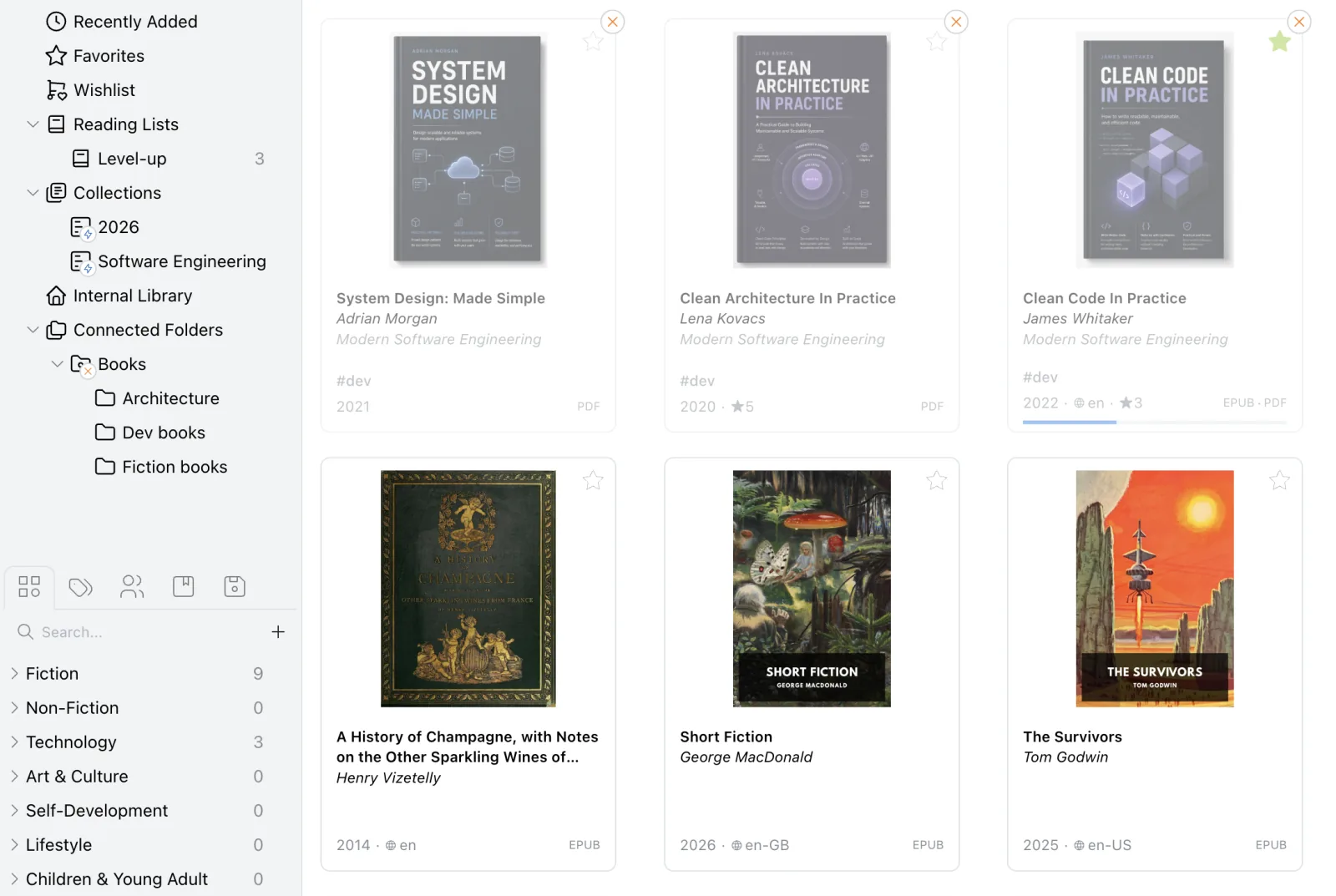
For books you need on the road, there’s Keep on This Device: Papyrium keeps a local copy on your Mac for offline reading, while the original stays where it is. That way a large collection can live on external storage, with only what you need right now on your Mac.
Your files stay yours
Papyrium doesn’t change the contents of your books. Your highlights, notes, and metadata edits are stored separately, in Papyrium’s library folder on your Mac. This data isn’t uploaded anywhere. The app moves or deletes a file only when you tell it to.
So you’re not tied to the app to get to your own books. If you ever stop using Papyrium, connected folders stay exactly as they were, and imported books remain ordinary files in the library folder. There’s nothing to export back and no folder structure to rebuild.
Papyrium adds a catalog on top of your collection. It doesn’t replace the way you store it.
Start with one folder
Connect one folder — the one with the most books — and try finding something you’d normally dig through folders for. You don’t have to commit your whole collection to try it. If you like it, connect the rest.
More on working with folders is in the docs.