
Keep your highlights and notes with your books
Read PDF, EPUB, and FB2 books on your Mac with highlights, notes, and bookmarks, and see a book's notes right in your library.
You rarely just read a technical book. You highlight some passages, comment on others, and mark the hardest parts to come back to later. A few months later, you need one of those notes again. The book itself is usually easy to find. The notes are another matter: you read the PDF in Preview and the EPUB in another app, and the highlights ended up wherever each app keeps them.
Read right from your library
Papyrium opens PDF, EPUB, and FB2 books from the catalog: in a tab next to your library, in a separate window, or, if you’d rather, in the app macOS uses for that format. The built-in reader remembers where you left off, and the book’s card in the catalog shows how far you’ve read.
Mark things as you read
In a book on databases, for example, you might highlight definitions of isolation levels in one color and the claims you’re not sure about in another, then add a note to the paragraph on locking about how it works in your own project. You can also leave a separate note about a whole chapter, and when you just need to find your place again, a bookmark will do.
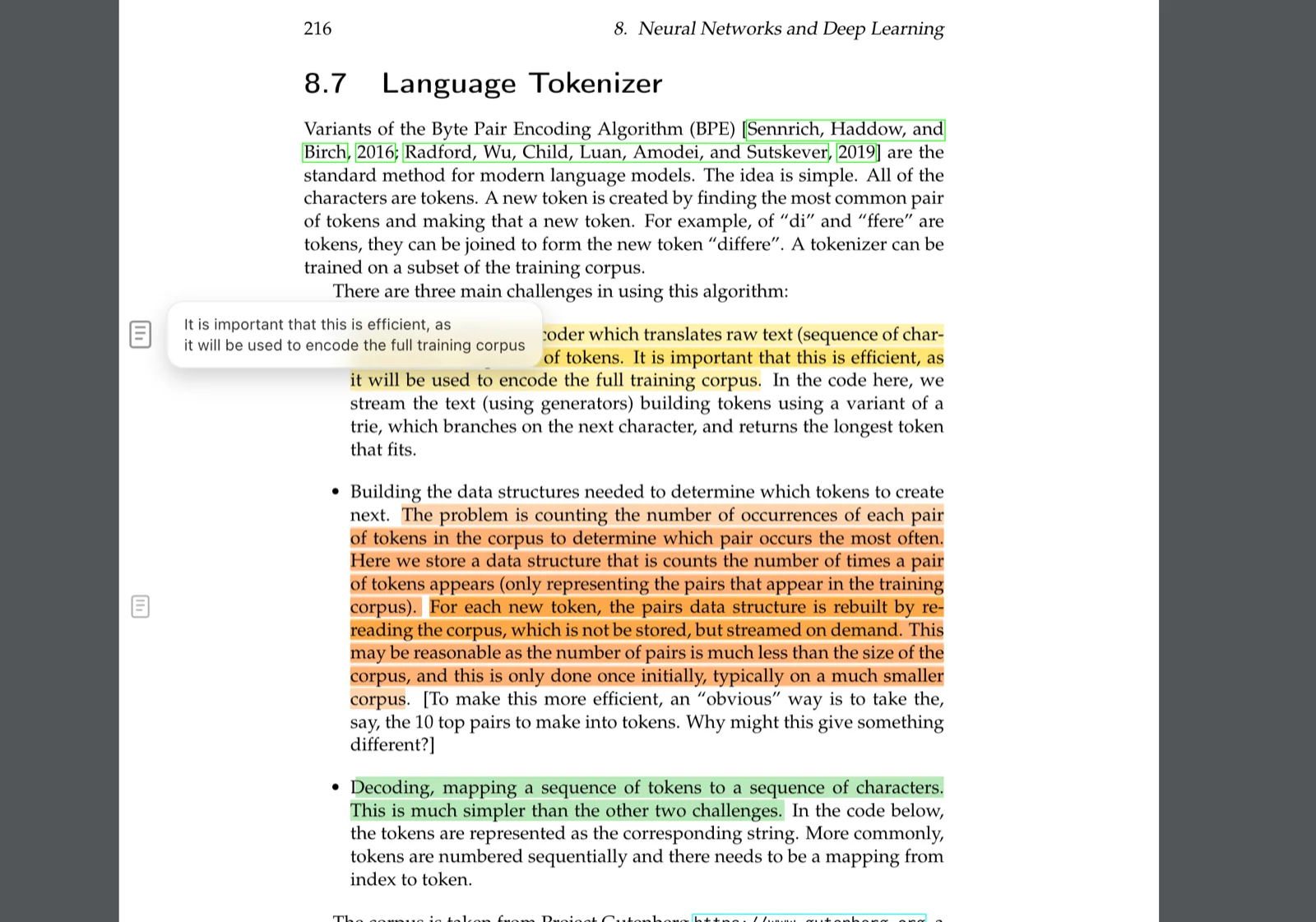
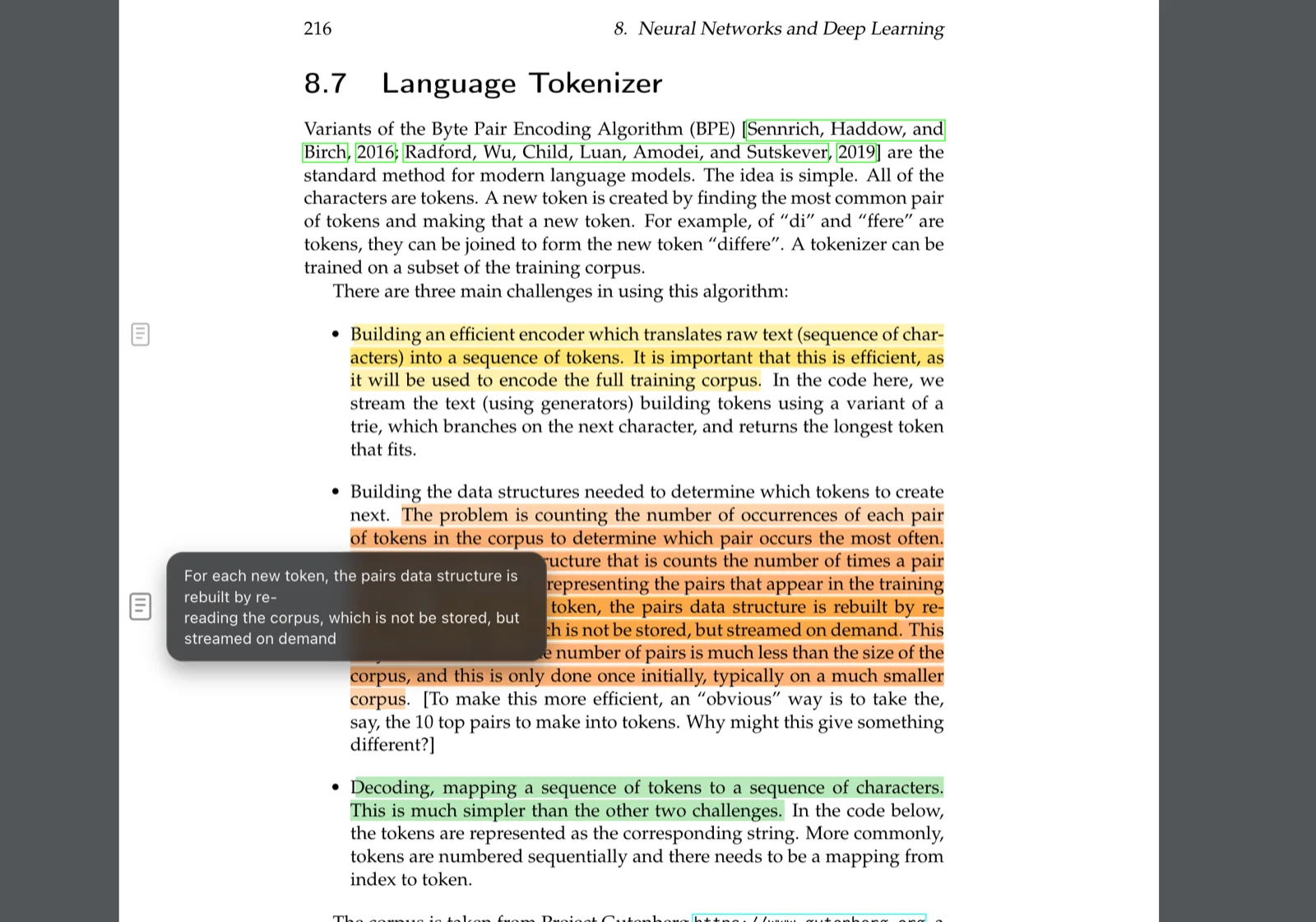
Highlights, notes, and bookmarks collect in the Annotations panel next to the text. You can narrow the list down to one kind, and clicking a highlight or a bookmark takes you back to that spot in the book.
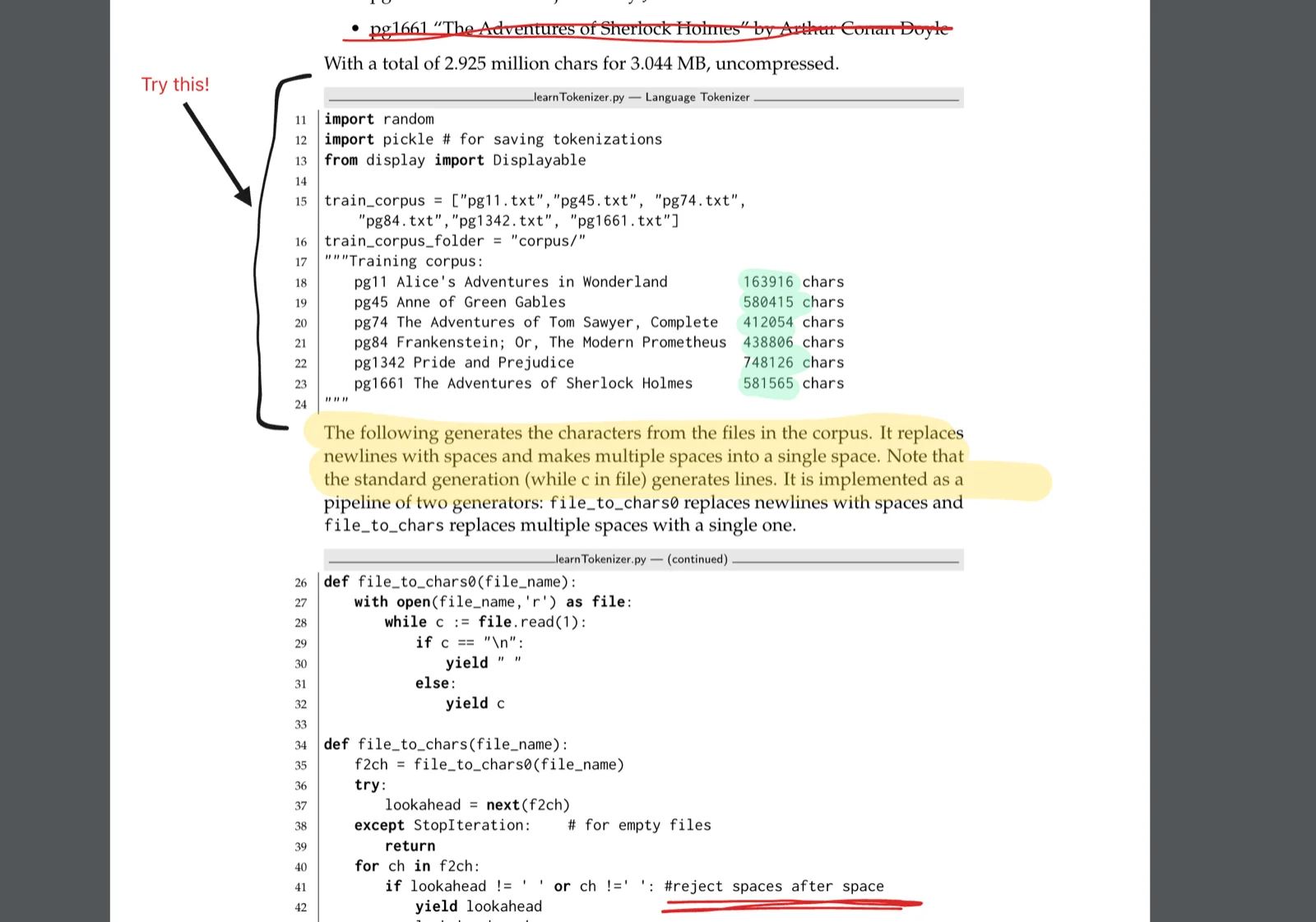
With PDFs, you can work almost as you would on paper: write in the margins, circle, underline, or highlight by hand, and draw an arrow from a chart to the paragraph that explains it. In textbooks, papers, and technical books, that’s often more useful than a plain highlight.
See your notes without opening the book
When you return to a book after a few months, it helps to first recall what stood out to you. You don’t need to open it for that: select the book in the catalog, and your highlights, notes, and bookmarks are in the sidebar, on the Annotations tab. And if you don’t remember which book a note was in, filter the catalog to books with notes, or ask an AI client to find it across your whole library.
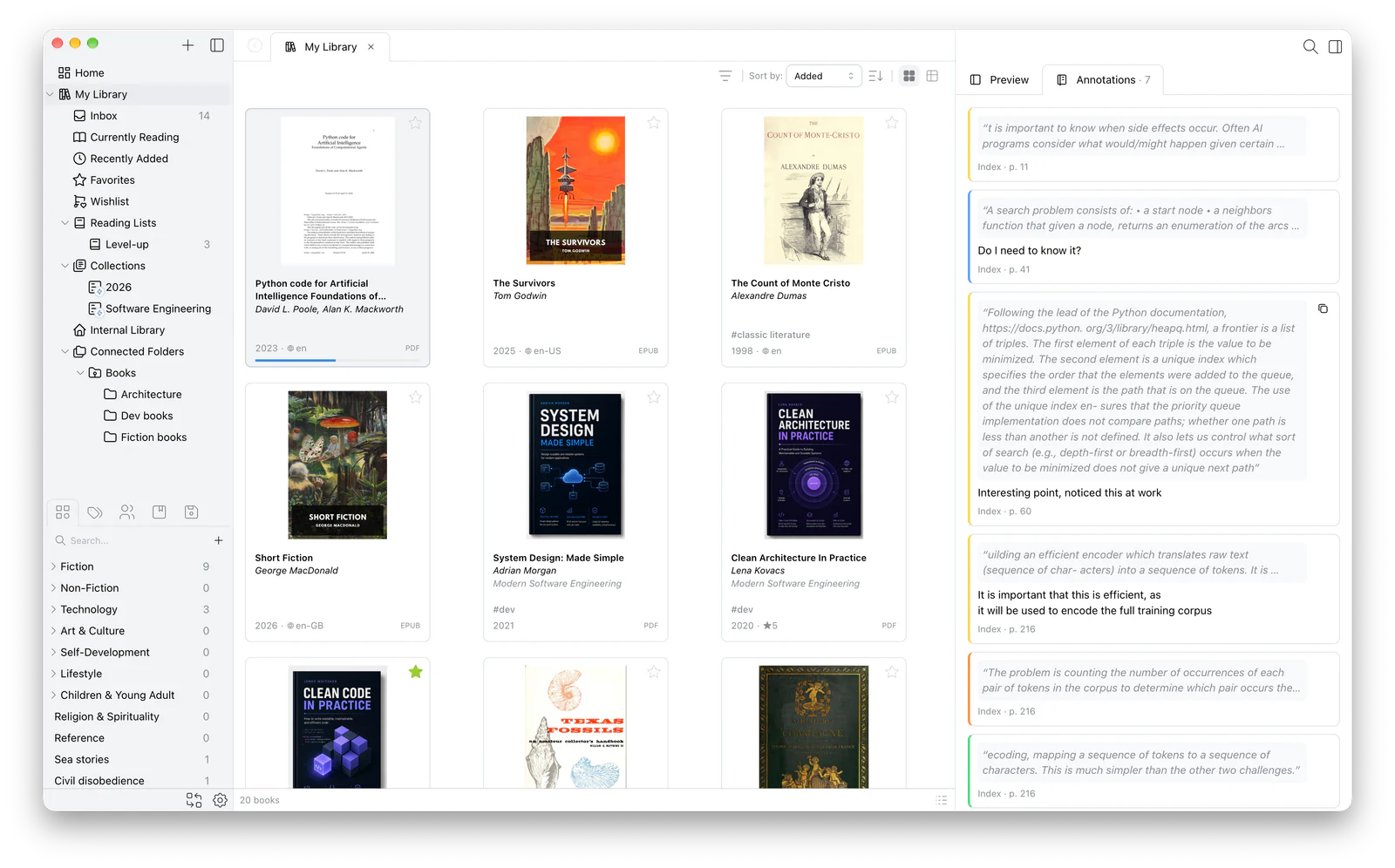
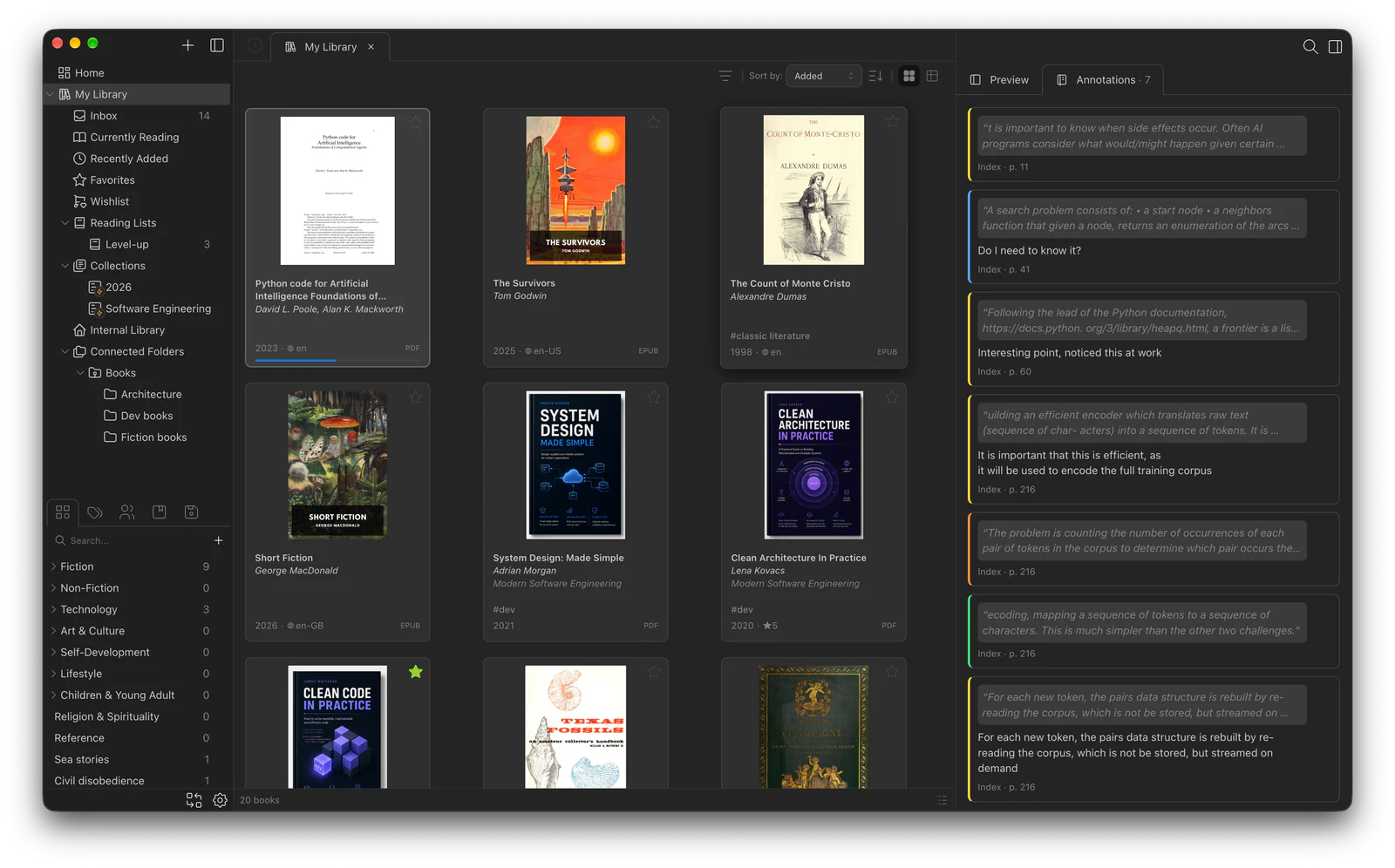
If you need that comment on locking for a report, you can copy it straight from the catalog, along with the quote, the book title, and the page or chapter, so you don’t have to track down the source again. Exporting all your notes at once to Markdown or Obsidian isn’t available yet. And to reread the passage itself, open the book and click the entry in the reader’s Annotations panel to jump straight to it.
Inside the file or next to it
There are two ways to store highlights. Preview and many other PDF apps write them into the PDF itself, so they travel with the file, but the app changes your file every time you mark something. EPUB readers usually keep highlights in their own database instead. So a collection read in several apps ends up with notes in several places.
Papyrium keeps highlights and notes next to the books: in its library folder on your Mac, without uploading them anywhere. The book files stay untouched, and notes for PDF, EPUB, and FB2 end up in one place. That’s also why a book’s notes can show up in the catalog.
The same approach helps with PDFs that can’t be changed at all. Some come with editing restricted by the author, others sit on a read-only drive or share, and Preview can’t save highlights into either. Papyrium never needs to write to the file, so you can mark these up like any other book.
The trade-off works both ways. Open the PDF in Preview, and your Papyrium highlights won’t be there; annotations that Preview saved into a PDF won’t show up in Papyrium’s Annotations panel either. And to back up your notes, you back up the library folder; a copy of the books alone isn’t enough.
Start with the book you’re reading now
Add it to Papyrium and mark it up as you normally would. The next time you come back to it, start with the Annotations tab.